
ESPTimeCast

ESPTimeCast™ is a sleek, WiFi-connected LED matrix clock and weather display built on ESP8266/ESP32 and MAX7219. It combines real-time NTP time sync, live OpenWeatherMap updates, and a modern web-based configuration interface — all in one compact design.
🚀 Install in Under a Minute (Recommended)
Flash ESPTimeCast directly from your browser — no Arduino IDE, no drivers setup, no manual configuration.
👉 Web Installer:
https://esptimecast.gocika.com
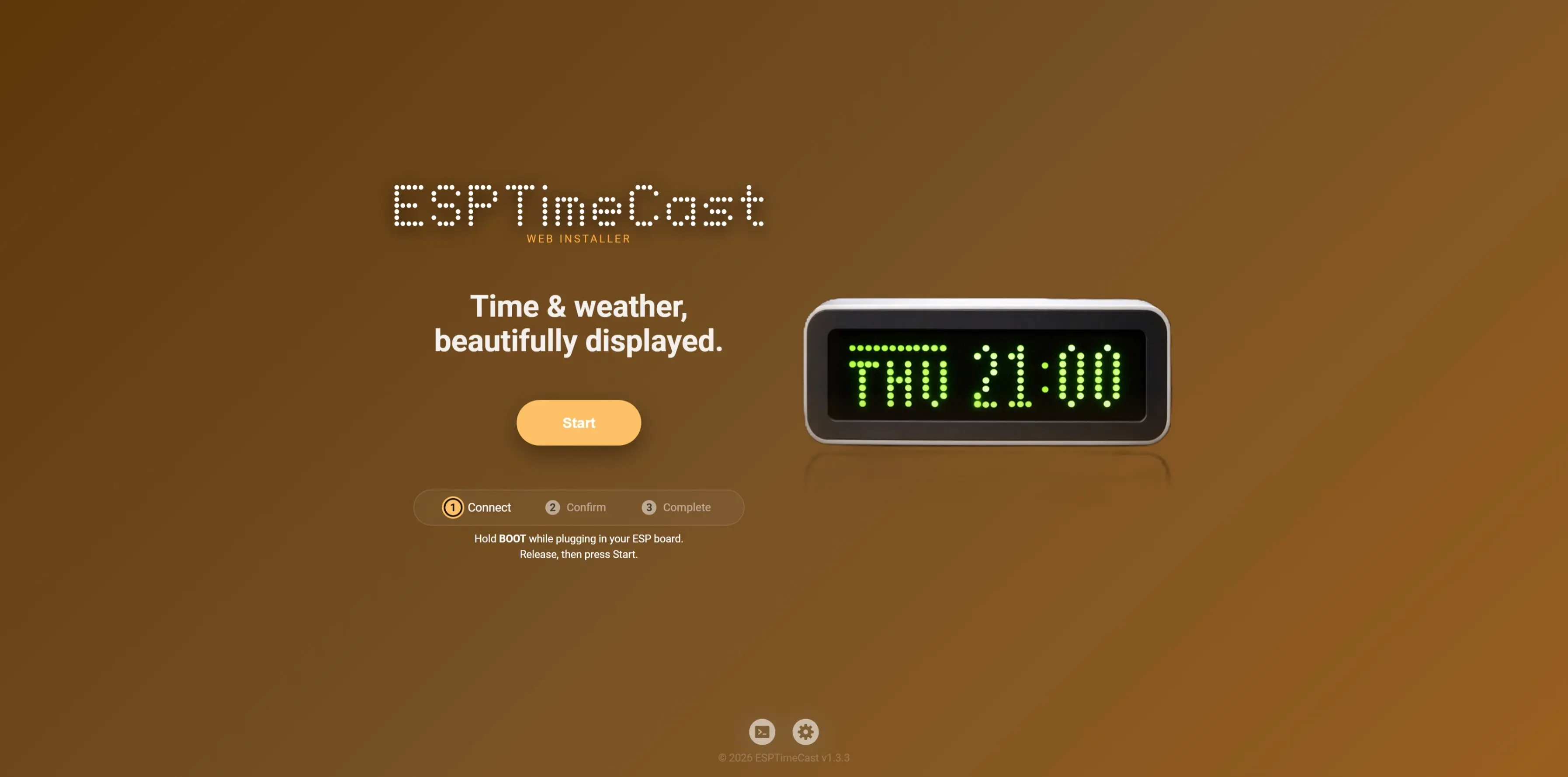
After flashing, connect to the ESPTimeCast WiFi access point to complete setup.
✅ Officially Tested Boards
- Wemos D1 Mini (ESP8266)
- ESP32 Dev Module
- ESP32-C3 SuperMini
- Wemos S2 Mini (ESP32-S2)
- ESP32-S3 WROOM-1 (Camera/SD board)
Compatible Chip Families
ESPTimeCast supports the following chip families:
- ESP8266
- ESP32
- ESP32-S2
- ESP32-C3
- ESP32-S3
Other development boards using these chips may work,
but pin mapping and USB behavior can vary.
📌 Wiring guide:
See the hardware connection table.
🔄 About Updates:
The browser-based update feature is designed for installations originally flashed using the Web Installer.
If you installed ESPTimeCast manually via Arduino IDE, the web update function may not work reliably.
Requires Chrome, Edge, or Brave (Web Serial support).
📦 3D Printable Case
To help support the project’s development, the official ESPTimeCast™ case design is available as a paid STL download (see links below).
If you prefer a free option, there are many compatible MAX7219 LED matrix enclosures shared by the community - you can find plenty by searching for “MAX7219 case” on Printables, Cults3D, or similar sites.


✨ Features
- LED Matrix Display (8x32) powered by MAX7219, with custom font support
- Simple Web Interface for all configuration (WiFi, weather, time zone, display durations, and more)
- Automatic NTP Sync with robust status feedback and retries
- Weather Fetching from OpenWeatherMap (every 5 minutes, temp/humidity/description)
- Custom Scroll Messages - fully persistent until manually cleared via the Web UI
- Fallback AP Mode for easy first-time setup or configuration
- Timezone Selection from IANA names (DST integrated on backend)
- Get My Location button to get your approximate Lat/Long
- Week Day and Weather Description display in multiple languages
- Persistent Config stored in LittleFS, with backup/restore system
- Status Animations for WiFi connection, AP mode, time syncing
- Advanced Settings panel with:
- Custom Primary/Secondary NTP server input
- Display Day of the Week toggle (default is on)
- Display Blinking Colon toggle (default is on)
- Show Date toggle (default is off)
- 24/12h clock mode toggle (24-hour default)
- Imperial Units (°F) toggle (metric °C defaults)
- Show Humidity toggle (display Humidity besides Temperature)
- Weather description toggle (displays: heavy rain, scattered clouds, thunderstorm etc.)
- Flip display (180 degrees)
- Adjustable display brightness
- Automatic Dimming based on Sunrise/Sunset from weather API
- Custom Dimming select custom dimming hours
- Countdown function (Scroll / Dramatic)
- Optional: ESPTimeCast supports displaying glucose data from Nightscout servers every 5 minutes, alternating with weather information
- Optional: Export and Upload settings via
device-ip/exportanddevice-ip/uploadendpoints
🪛 Wiring your ESPTimeCast
ESPTimeCast uses board-specific recommended SPI pin mappings to ensure consistent behavior, stable power delivery, and reliable brightness.
📌 Current Pin Assignment
The following pin mappings correspond to the official Web Installer builds. If you are compiling manually, ensure your pin definitions match this table.
| Chip | Board / Module | CLK | CS | DIN | VCC | GND |
|---|---|---|---|---|---|---|
| ESP8266 | D1 Mini (USB-C / Micro-USB) | 14 | 13 | 15 | 5V | GND |
| ESP32 | ESP32 Dev Module / D1 Mini ESP32 (not ESP8266) | 18 | 23 | 5 | 5V | GND |
| ESP32-S2 | S2 Mini | 7 | 11 | 12 | 5V | GND |
| ESP32-C3 | SuperMini (Updated GPIO Mapping as of v1.3.2) | 4 | 10 | 6 | 5V | GND |
| ESP32-S3 | WROOM-1 (Camera / SD board) | 18 | 16 | 17 | 5V | GND |
The table lists raw GPIO numbers.
MAX7219 modules are typically powered at 5V but accept 3.3V logic on DIN / CLK / CS.
All ESP32 boards listed above have been tested successfully with this wiring.
ESP8266 D1 Mini boards are often labeled using D-pins (D5 = GPIO14, D7 = GPIO13, D8 = GPIO15). Other boards using the same chip families may work, but SPI pins may differ depending on the manufacturer layout. ESP32-C3 SuperMini mapping changed to avoid strapping pin conflicts and boot issues present on some boards.
🧩 Wiring Diagram

Tip: Double-check the pin order on your MAX7219 module — labeling and orientation can vary between manufacturers.
🔄 Upgrading from an older build?
If your device was wired before Oct 17, 2025, please verify the following:
- CLK is connected to D5
- VCC is connected to 5V (not 3.3V)
- Flashing via the web installer automatically applies the correct defaults
First-time Setup / AP Mode
- Power on the device. If WiFi fails, it auto-starts in AP mode:
- SSID:
ESPTimeCast - Password:
12345678 - Captive portal should open automatically, if it doesn't open
http://192.168.4.1orhttp://setup.espin your browser.
- SSID:
- Set your WiFi and all other options.
- Click Save Setting – the device saves config, reboots, and connects.
- The device shows its local IP address after boot so you can login again for setting changes
External links and the "Get My Location" button require internet access.
They won't work while the device is in AP Mode - connect to WiFi first.
🌐 Web UI & Configuration
ESPTimeCast includes a built-in Web UI that lets you fully configure the device from any browser — no apps required.
You can open the Web UI using either:
http://esptimecast.local
mDNS / Bonjour - Works on macOS, iOS, Windows with Bonjour, and most modern browsers.The device’s local IP address
→ On every reboot, ESPTimeCast shows its IP on the LED display so you can easily connect.
The Web UI gives you control over:
- WiFi settings (SSID & Password)
- Weather settings (OpenWeatherMap API key, City, Country, Coordinates)
- Time zone (will auto-populate if TZ is found)
- Day of the Week and Weather Description languages
- Display durations for clock and weather (milliseconds)
- Custom Scroll Text - set a persistent scrolling message on the display directly from the Web UI
- Advanced Settings (see below)
⚙️ Advanced Settings
Click the cog icon next to “Advanced Settings” in the Web UI to reveal extra configuration options.
Available advanced settings:
- Primary NTP Server: Override the default NTP server (e.g.
pool.ntp.org) - Secondary NTP Server: Fallback NTP server (e.g.
time.nist.gov) - Day of the Week: Display Day of the Week in the desired language
- Blinking Colon toggle (default is on)
- Show Date (default is off, duration is the same as weather duration)
- 24/12h Clock: Switch between 24-hour and 12-hour time formats (24-hour default)
- Imperial Units (°F) toggle (metric °C defaults)
- Humidity: Display Humidity besides Temperature
- Weather description toggle (display weather description in the selected language for 3 seconds or scrolls once if description is too long)
- Flip Display: Invert the display vertically/horizontally
- Brightness: Off - 0 (dim) to 15 (bright)
- Automatic Dimming Feature base on Sunrise/Sunset from weather API
- Custom Dimming Feature: Start time, end time and desired brightness selection
- Countdown function, set a countdown to your favorite/next event, 2 modes: Scroll/Dramatic!
Non-English characters converted to their closest English alphabet.
For Esperanto, Irish, and Swahili, weather description translations are not available. Japanese translations exist, but since the device cannot display all Japanese characters, English will be used in all these cases.
Tip: Don't forget to press the save button to keep your settings
📝 Configuration Notes
- OpenWeatherMap API Key:
- City Name: e.g.
Tokyo,London, etc. - Country Code: 2-letter code (e.g.,
JP,GB) - ZIP Code: Enter your ZIP code in the city field and US in the country field (US only)
- Latitude and Longitude You can enter coordinates in the city field (lat.) and country field (long.)
- Time Zone: Select from IANA zones (e.g.,
America/New_York, handles DST automatically)
🚀 Getting Started
There are two ways to install ESPTimeCast:
🥇 Recommended: Web Installer (Fastest)
Flash directly from your browser in under a minute: https://esptimecast.gocika.com
🛠 Manual Installation (Arduino IDE)
If you prefer compiling and uploading manually, follow the instructions below.
⚙️ ESP8266 Setup
Follow these steps to prepare your Arduino IDE for ESP8266 development:
- Install ESP8266 Board Package:
- Open
File > Preferencesin Arduino IDE. - Add
http://arduino.esp8266.com/stable/package_esp8266com_index.jsonto "Additional Boards Manager URLs." - Go to
Tools > Board > Boards Manager.... Search foresp8266byESP8266 Communityand click "Install".
- Open
- Select Your Board:
- Go to
Tools > Boardand select your specific board, e.g., Wemos D1 Mini (or your ESP8266 variant).
- Go to
- Configure Flash Size:
- Under
Tools, selectFlash Size "4MB FS:2MB OTA:~1019KB"orFlash Size "Mapping defined by Hardware and Sketch". This ensures enough space for the sketch and LittleFS data.
- Under
- Install Libraries:
- Go to
Sketch > Include Library > Manage Libraries...and install the following:ArduinoJsonby Benoit BlanchonMD_Parolaby majicDesigns (this will typically also install its dependency:MD_MAX72xx)ESPAsyncTCPby ESP32AsyncESPAsyncWebServerby ESP32Async (3.9.1 or above)
- Go to
⚙️ ESP32 Setup
Follow these steps to prepare your Arduino IDE for ESP32 development:
Install ESP32 Board Package:
- Go to
Tools > Board > Boards Manager.... Search foresp32byEspressif Systemsand click "Install".
- Go to
Select Your Board:
- Go to
Tools > Boardand select your specific board, e.g., LOLIN S2 Mini (or your ESP32 variant).
- Go to
Configure Partition Scheme:
- Go to
Tools > Partition Schemeand choose one of the following:- For OTA support (recommended):
Minimal SPIFFS (1.9MB APP with OTA / 128KB SPIFFS)
This enables wireless firmware updates via the built-in web interface. - Without OTA support:
No OTA (2MB APP / 2MB SPIFFS)orNo OTA (LARGE APP)
These provide a larger filesystem but do not support OTA updates.
- For OTA support (recommended):
Note: OTA works out of the box with the official Web Installer build.
Manual builds are fully supported as well - just make sure you're using the recommended pinout for your specific board as documented in this repository.
Important: If theMinimal SPIFFSoption does not appear, make sure you have selected Dev Module for your specific ESP32 chip family (e.g., ESP32 Dev Module, ESP32-S2 Dev Module, ESP32-C3 Dev Module).- Go to
Install Libraries:
- Go to
Sketch > Include Library > Manage Libraries...and install the following:ArduinoJsonby Benoit BlanchonMD_Parolaby majicDesigns (this will typically also install its dependency:MD_MAX72xx)AsyncTCPby ESP32AsyncESPAsyncWebServerby ESP32Async
- Go to
⬆️ Uploading the Code and Data
Once your IDE is ready:
Open the Project Folder
- ESP8266: Open the
ESPTimeCast_ESP8266folder and openESPTimeCast_ESP8266.ino. - ESP32: Open the
ESPTimeCast_ESP32folder and openESPTimeCast_ESP32.ino.
- ESP8266: Open the
Recommended: Add the mfactoryfont.h for Full Visuals
- To use the official mfactoryfont.h (custom font + icons), download it from:
https://esptimecast.github.io/mfactoryfont/mfactoryfont.h- (Right-click the link and choose “Save As…” to download the file.)
- Place
mfactoryfont.hin the same folder as your sketch. - If the font is detected, the firmware will use it automatically.
- If not, the firmware will fall back to the Basic Font, which is fully functional but simpler.
- To use the official mfactoryfont.h (custom font + icons), download it from:
- Upload the Sketch
- Click the Upload button (right arrow icon) in the Arduino IDE toolbar. This will compile and upload the sketch to your board.
- No separate LittleFS upload is needed. All web UI files are embedded in the sketch.
⚠️ Note for existing users: If you have previously uploaded /data via LittleFS, you can safely skip that step now — the device will manage config files internally.
🏠 ESPTimeCast™ Home Assistant Integration
This guide explains how to integrate ESPTimeCast with Home Assistant to send custom messages to your LED display.
🧠 Overview
ESPTimeCast exposes a REST API endpoint that lets you send scrolling messages to the display from either Home Assistant or the built-in Web UI.
Web UI messages
- Act as persistent messages
- Remain active (even through reboots) until replaced or cleared in the Web UI
- Short messages (up to 8 characters) display static & centered, using the Web UI’s
Weather Durationbefore the display rotates to the next mode
Home Assistant messages
- Are temporary overrides
- Do not overwrite the persistent Web UI message
- Can automatically expire using:
scrolltimes→ number of scroll cycles
- If neither parameter is sent:
- Short messages (up to 8 characters) use
Weather Duration - Long messages scroll once per display cycle (then the display advances to the next mode, e.g., clock → weather → …)
- Short messages (up to 8 characters) use
New: Home Assistant messages can now expire automatically after a set number of seconds or scroll cycles and the last Web UI message (if any) will be restored.
🔗 Endpoint
POST http://<device_ip>/set_custom_message
📝 Parameters
| Parameter | Type | Required | Description |
|---|---|---|---|
| string | Yes | Message text to display. Send an empty string ("") to clear messages. |
| integer | Optional | Set to 1 to use the Large Numbers Font. (WEB UI Shortcut: Wrap numbers in brackets, e.g., [123]). |
| integer | Optional | Scrolling speed (range 10–200). Lower values = faster scroll. |
| integer | Optional | Maximum display duration in seconds (range 0–3600). If set to 0, Weather Duration will be used. |
| integer | Optional | Maximum number of full scroll cycles (range 0–100). Set to 0 for infinite scrolls. |
| integer | Optional | 1 (Default): New messages replace the current one immediately. 0: Protects the message. Returns 409 Conflict to any new requests until the current message expires. |
💡 Message Behavior Overview
| Source | Behavior | Notes |
|---|---|---|
| Home Assistant | Displays message temporarily (until next mode rotation or clear). | Returns to Clock/Weather rotation if no UI message exists. |
| Web UI | Displays message persistently until manually cleared. | Acts as a permanent banner or ticker. |
| Clear command from Web UI | Clears all messages (HA + UI). | Use this to reset the display completely. |
| Clear command from Home Assistant | Clears only the temporary HA message. | UI message will reappear if one was saved. |
| Scrolltimes expires (HA only) | Automatic clear. The temporary message is removed when the limit is reached. | Automatically restores the saved UI message. |
Short messages (up to 8 characters):
- Display static & centered (no scrolling).
- Home Assistant: uses
secondsif provided, otherwise the Web UI Weather Duration. - Web UI: always uses Weather Duration.
Long messages (8 characters or more):
- Always scroll.
- If sent from HA, scrolling stops when scrolltimes limit is reached or manually clered when sent without parameter.
The "Protected" State (How it works)
- When a message is sent with
allowInterrupt=0, it creates a protected window. The display will refuse to show any new incoming messages until the current one has finished its scrolltimes or seconds. - Why use it? Use
allowInterrupt=0for critical alerts (e.g., "LEAK DETECTED") that you don't want a random notification to overwrite. - The 409 Error: If your automation receives a 409 Conflict, it simply means the display is currently busy showing a protected message.
- Clearing a Lock: If you send an infinite message (scrolltimes=0, seconds=0) with allowInterrupt=0, it stays on screen indefinitely. To break this lock, you can:
- Send an empty message (message=) from Home Assistant.
- Use the Clear button in the Web UI.
- Send a new message with allowInterrupt=0 to replace it.
🎨 Using mfactoryfont.h Icons (v1.2.3)
ESPTimeCast™ v1.2.3 introduces 65 new icons you can use in:
- Home Assistant messages – send temporary or scrollable messages with visual icons.
- Web UI custom messages – include icons in persistent or scrolling text.

Full Icons List
[NOTEMP][NONTP][WIFI][INFO][AP]
[C][F][TIMEISUP][TIMEISUPINVERTED][SUNNY]
[CLOUDY][NODATA][RAINY][THUNDER][SNOWY][WINDY][CLOCK]
[ALARM][UPDATE][BATTERYEMPTY][BATTERY33][BATTERY66][BATTERYFULL][BOLT][HOUSE][TEMP]
[MUSICNOTE][PLAY][SPACE][PAUSE][EURO][SPEAKER][SPEAKEROFF][RED][UP][DOWN][RIGHT][LEFT]
[TALK][HEART][CHECK][INSTA][TV][YOUTUBE][BELL][LOCK][PERSON][HOURGLASS]
[HOURGLASS25][HOURGLASS75][HOURGLASSFULL][CAR][MAIL][CO2][MOON][SIGNAL1][SIGNAL2]
[SIGNAL3][DEG][SUNDAYJP][MONDAYJP][TUESDAYJP][WEDNESDAYJP][THURSDAYJP][FRIDAYJP][SATURDAYJP][MIST]
How to use icons:
- Wrap the icon name in brackets:
[SUNNY] [YOUTUBE] - Short messages (≤8 chars) = static & centered; longer = scrolling
- Requires
mfactoryfont.h; otherwise firmware falls back to Basic Font
🔆 Brightness Control (Home Assistant)
ESPTimeCast provides an endpoint that allows Home Assistant to remotely control the LED matrix brightness — including turning the display completely off.
🔗 Endpoint
POST http://<device_ip>/set_brightness
📝 Parameters
| Parameter | Type | Required | Description |
|---|---|---|---|
| integer | Yes | Brightness level 0–15, or -1 to turn the display off. |
- Values 0–15 set the LED matrix brightness normally.
- Value -1 turns the display off entirely (LEDs disabled) until brightness is set again.
- When brightness is set back to 0–15, the display immediately resumes showing the current message or mode.
🧩 Example Home Assistant rest_command
rest_command:
  esptimecast_brightness:
    url: "http://<device_ip>/set_brightness"
    method: POST
    content_type: "application/x-www-form-urlencoded"
    payload: "value={{ brightness }}"
⚡ Example Automation
alias: Dim ESPTimeCast at Night
trigger:
  - platform: time
    at: "23:00"
action:
  - service: rest_command.esptimecast_brightness
    data:
      brightness: -1   # Turns the display off
⚡ Quick Test via curl
You can quickly test changing the brightness of your ESPTimeCast display using curl from any computer on the same network:
curl -X POST -d "value=10" "http://<device_ip>/set_brightness"
Replace <device_ip> with the IP address of your ESPTimeCast device.
Use a brightness value between 0–15, or -1 to turn the display off.
🧩 Hidden & Advanced Features
ESPTimeCast™ includes a few optional “power-user” features that aren’t visible in the main interface but can be accessed directly from your browser. These are intended for advanced users who want more control or integration.
⚙️ /factory_reset
Erases all saved configuration data, Wi-Fi credentials, and uptime history. Used to restore the device to its original state. Only available in AP mode.
Example:
http://192.168.4.1/factory_reset
💾 /export
Downloads your current configuration (config.json) directly from the device.
This is useful for creating backups or migrating settings between devices.
Example:
http://your-device-ip/export
The file will download automatically with your saved WiFi credentials (safely masked for security) and all other settings.
📂 /upload
Lets you manually upload a configuration file (config.json) to the device.
Perfect for restoring a backup or quickly switching between setups.
Usage:
Go to
http://your-device-ip/upload- Select your edited or backup
config.jsonfile. - The device will confirm the upload and automatically reboot with the new configuration.
Tip: You can export → edit the file on your computer → re-upload to test new settings without using the web interface.
⚕️ Nightscout Integration
ESPTimeCast supports displaying glucose data from Nightscout servers alongside weather information.
When the secondary NTP/URL field (ntpServer2) contains a valid Nightscout API endpoint for example:
https://your-cgm-server/api/v1/entries/current.json?token=xxxxxxxxxxxxx
the device automatically enables Glucose Display Mode.
In this mode:
- The device fetches glucose data every 5 minutes.
- Glucose value and trend direction are displayed alternately with time and weather.
- The display duration for Nightscout data is the same as the weather display duration.
- Weather data continues to display normally.
- Debug logs confirm updates and Nightscout responses in the Serial Monitor.
⚠️ Notes
- These features are optional and hidden from the main interface to avoid clutter.
/uploadand/exportare intentionally unlinked from the UI to prevent accidental access.- Always verify your WiFi credentials and tokens before uploading edited configurations.
📺 Display Behavior
ESPTimeCast™ automatically switches between two display modes: Clock and Weather. If "Show Weather Description" is enabled, a third mode (Description) will display with a duration of 3 seconds, if the description is too long to fit on the display the description will scroll from right to left once.
What you see on the LED matrix depends on whether the device has successfully fetched the current time (via NTP) and weather (via OpenWeatherMap).
The following table summarizes what will appear on the display in each scenario:
| Display Mode | 🕒 NTP Time | 🌦️ Weather Data | 📺 Display Output |
|---|---|---|---|
| Clock | ✅ Yes | — | 🗓️ Day Icon + ⏰ Time (e.g. @ 14:53) |
| Clock | ❌ No | — |
|
| Weather | — | ✅ Yes | 🌡️ Temperature (e.g. 23ºC) |
| Weather | ✅ Yes | ❌ No | 🗓️ Day Icon + ⏰ Time (e.g. @ 14:53) |
| Weather | ❌ No | ❌ No |
|
How it works:
- The display automatically alternates between Clock and Weather modes (the duration for each is configurable).
- If "Show Weather Description" is enabled a third mode Description will display after the Weather display with a duration of 3 seconds.
- In Clock mode, if NTP time is available, you’ll see the current time plus a unique day-of-week icon. If NTP is not available, you'll see
! NTP. - In Weather mode, if weather is available, you’ll see the temperature (like
23ºC). If weather is not available but time is, it falls back to showing the clock. If neither is available, you’ll see! TEMP. - All status/error messages (
! NTP,! TEMP) are big icons shown on the display.
Legend:
- 🗓️ Day Icon: Custom symbol for day of week (
@,=, etc.) - ⏰ Time: Current time (HH:MM)
- 🌡️ Temperature: Weather from OpenWeatherMap
- ✅ Yes: Data available
- ❌ No: Data not available
- — : Value does not affect this mode
Share: